
roost
roost is the dashboard surface for shipping project folders to Windows machines. It lives at /roosts and replaces the old project-distribution page with a content-addressed, versioned sync model.
roost is currently shown in the dashboard as a developer preview. The upload, storage, version history, target sync, re-sync, and rollback paths are present; automatic webhook events, in-flight agent cancellation, and post-reboot resume are still being hardened.
how it works
browser
  -> hash files into 4 MiB SHA-256 chunks
  -> ask owlette which chunks already exist
  -> upload missing chunks directly to R2 signed URLs
  -> publish an immutable version body
  -> queue sync_pull commands for target machines
  -> agents download chunks, assemble files, and commit atomically
The browser builds the version before anything is published. Each file entry records its relative path, size, and ordered chunk list. Re-uploading a folder with one changed file reuses existing chunk hashes and uploads only the missing chunks.
Version bodies are immutable. Publishing writes the version JSON to R2, derives a stable versionId from the canonical version content, and updates sites/{siteId}/roosts/{roostId} in a Firestore transaction. The roost doc stores the current pointer, previous pointer, version number, description, targets, extract path, and denormalized file/size totals.
Targets receive sync_pull commands. The agent fetches a fresh signed URL for the version body, downloads any missing chunks, writes local crash-safe state to C:\ProgramData\Owlette\sync-state.db, assembles files under the extract path, and commits the result atomically.
creating a roost
- Open
roostfrom the dashboard header. - Click
new roost. - Enter a roost name and optional description.
- Leave source set to
upload files. - Drop a folder or browse for a folder/files.
- Choose an optional extract path.
- Select target machines.
- Click
upload and distribute.
The secondary upload action publishes a version without target machines. Use it when you want to store the version first, then add targets or re-sync later.
Before the upload starts, the dialog shows a size and target check. It estimates total bytes, warns when target disk capacity is unknown or insufficient, and blocks only hard failures. During upload, the dialog can be minimized; the floating upload card keeps showing hash, duplicate-check, upload, and finalize progress.
source and paths
The primary source mode is upload files. Files are chunked and hashed locally in the browser. Empty files are skipped because the version schema requires at least one positive-size chunk per file.
The extract path defaults to ~/Documents/Owlette/. Absolute paths are allowed only when the agent's agent_config.allowed_extract_roots allowlist includes that destination. If the path looks outside the default root, the dialog shows the exact config block to add on the target machine.
publishing new versions
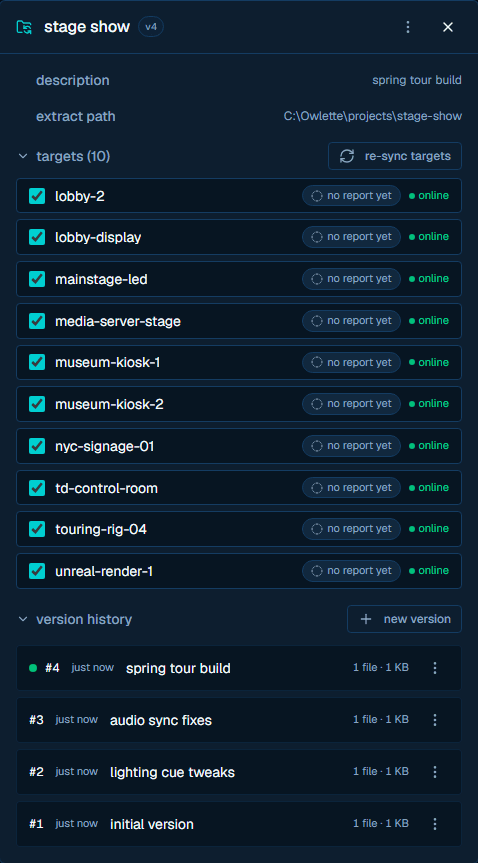
Open an existing roost and click new version from version history. The dialog title changes to publish new version of "<name>"; the name, extract path, and target machines stay locked to the current roost. Drop the replacement folder/files, add a description, then publish.
Each publish creates a new immutable version and increments the roost-local version number (v1, v2, v3, ...). The version list shows the current marker, description, relative publish time, file count, size, and actions to copy the version id, view files, diff against current, edit description, or rollback.
Descriptions are mutable metadata. Version content is not. If the files or chunks need to change, publish another version.
targets and status
Targets are stored on the roost doc and shown in the detail panel. Adding a target from the panel updates the target list and automatically dispatches the current version to the newly added machines. Removing a target stops future roost dispatches to that machine, but it does not delete already written files from disk.
Use re-sync targets after fixing a failed machine or when you want every target to pull the current version again. Re-sync clears stale target_state records for the roost, removes the previous rollout record for the current version, and queues fresh sync_pull commands for all current targets.
| target state | dashboard label | meaning |
|---|---|---|
pending | queued | Command accepted or target has not reported progress yet |
downloading | downloading | Agent is fetching missing chunks; chunk counts may be shown |
assembling | assembling | Agent is rebuilding files under the extract path |
committed | synced | Files were assembled and atomically committed |
failed | failed | Agent reported an error; the message is shown in the target row tooltip |
cancelled | cancelled | Sync was cancelled before commit |
Collapsed rows roll those states up as synced, syncing, partial, queued, failed, or no targets. A report for an older version is treated as awaiting the current version so the row does not show stale success.
rollback
Rollback flips the roost's current pointer back to an existing version; it does not create a new version. The rollback API accepts version aliases such as previous, current, first, numeric versions such as 3 or v3, and stable version ids.
After rollback, the roost doc changes currentVersionId, currentVersionNumber, previousVersionId, totals, and version URL. The same target fan-out path handles machines pulling the older version. If a target does not move after rollback, use re-sync targets.
Rollback is rejected when the selected version is already current. If the version metadata exists but the version body has been reclaimed from storage, file view, diff, or rollback cannot use that body.
presets
The presets row in new roost stores reusable source/path settings. Built-in presets can be applied but are not edited in place. Custom presets can be created, renamed, deleted, and replaced.
When a custom preset is active, edits to the saved URL and extract path autosave after a short debounce. The inline status changes from autosaves to saving... to saved. Presets do not save dropped files, version descriptions, selected targets, or published versions.
troubleshooting
chunk upload failures
- If upload stalls during
checking for duplicates, the browser could not complete the chunk-presence check. Refresh and retry after confirming the site is selected and the session is still authenticated. - If upload stalls during
uploading, one or more signed R2 PUTs failed. The upload queue retries with backoff; after the retry cap, the upload fails with the failed chunk count. - Reopen the same roost and drop the same folder/files to resume. The IndexedDB queue is keyed by site and roost, so already succeeded chunks are skipped and in-flight chunks replay.
- Clearing browser site data removes the IndexedDB queue. The next attempt still dedupes against R2, but the browser no longer knows which local queue tasks had already succeeded.
R2 or signed URL issues
- Server-side R2 access requires
R2_S3_ENDPOINT,R2_S3_ACCESS_KEY_ID, andR2_S3_SECRET_ACCESS_KEY. - A finalize error that says chunks are missing means the version references hashes that are not present in R2. Retry the upload so
/api/chunks/upload-urlscan mint fresh PUT URLs for the missing hashes. - Agent download errors can come from expired or rejected signed URLs. The agent asks the web API for fresh version and chunk URLs during
sync_pull; check API auth and R2 credentials if those requests fail. - A
version body goneresponse means version metadata still exists but the R2 version body cannot be read.
IndexedDB queue recovery
During upload, tasks are persisted in browser IndexedDB. On restart, any in_flight task is demoted back to pending and retried. Recovery requires the same browser profile, same site, same roost id, and the same local files so chunk hashes match.
If recovery keeps failing, cancel the upload, clear the selected files, reselect the folder, and start again. Because chunks are content-addressed, chunks already present in R2 should still be skipped by the check phase.
manifest creation and publish failures
- roost cannot publish an empty version. If every selected file is zero bytes or rejected by path sanitization, add at least one non-empty file.
- Chunk hashes must be lowercase 64-character SHA-256 hex strings. Hashes with prefixes or uppercase characters are invalid.
- Publish verifies every referenced chunk exists before the Firestore pointer changes. Missing chunks return a precondition failure.
- Concurrent publishes can conflict when the expected current version no longer matches the roost head. Reopen the roost, confirm the new current version, and publish again.
agent assembly or commit failures
- Check the target row's error tooltip first; full detail remains in the agent log and local sync state.
- Confirm the machine is online and running an agent build with
sync_pullsupport. - Confirm the extract path is inside the agent allowlist.
- Check available disk space on the destination volume.
- If downloads succeed but assembly fails, fix the path, permission, or disk issue, then use
re-sync targets. - If a newly published version is bad, rollback to the previous version and let targets pull the older content.
rollback does not move targets
- Confirm the selected rollback target is not already current.
- Confirm the older version body still exists in R2.
- Check whether the row shows an old target report. A target report for a prior current version is treated as awaiting agent work for the new pointer.
- Use
re-sync targetsto queue freshsync_pullcommands after correcting the storage, auth, or agent issue.
legacy URL distribution
The current checkout still contains a compatibility path for legacy URL distribution: the roost dialog exposes by url, and legacy /api/sites/{siteId}/project-distributions routes remain in code. Treat this as a migration or escape-hatch path for existing hosted archives, not the primary roost flow.
The legacy URL path does not create content-addressed versions, version file lists, roost target-state rows, or rollback history. New documentation and new operational workflows should use upload files on /roosts.
deployments
Deploy Windows installers to one or many machines. owlette creates a tracked deployment record, fans out install_software commands, and reconciles per-machine progress as agents report back.
hoot (ai chat)
hoot is the dashboard chat surface for diagnosing and managing machines with an LLM. It supports Anthropic and OpenAI providers, can target either one machine or every online machine in a site, and routes tool calls through the safest available execution path for the current target.