
deployments
Deploy Windows installers to one or many machines. owlette creates a tracked deployment record, fans out install_software commands, and reconciles per-machine progress as agents report back.
overview
The deployments page lets operators:
- Start installer deployments from admin-curated system presets, saved templates, or a direct installer URL
- Select all machines, only online machines, or specific machines
- Close managed or named processes before installation
- Track each target through download, install, completion, failure, cancellation, or uninstall
- Retry failed targets, uninstall deployed software, or delete completed records
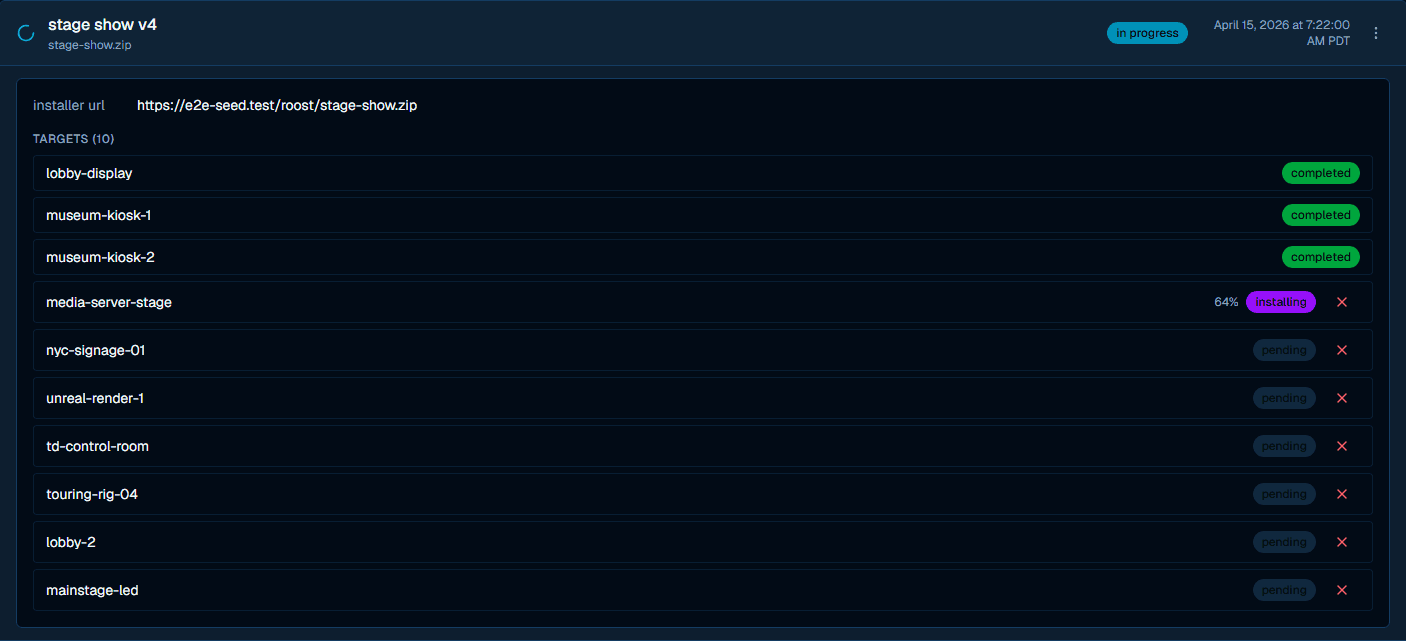
creating a deployment
- Open deployments from the dashboard navigation.
- Click new deployment.
- Choose a starting point in the template selector:
- none starts from a blank form.
- Admin-curated system presets are grouped by category and fill the installer fields automatically.
- Saved templates are listed under Saved and can be reused.
- Optionally click the pencil button to set a deployment name. If you leave the name blank, owlette derives one from the selected preset/template, installer filename, or
Deployment. - Enter or confirm the installer fields.
- Choose target machines with online only, select all, or individual machine checkboxes.
- Click deploy to N machines.
| field | required | description |
|---|---|---|
| Template | No | Blank form, system preset, or saved template. System presets are read-only in this dialog. |
| Deployment name | No | Optional label; otherwise derived automatically. |
| Installer URL | Yes | Direct https:// URL for the installer. The filename is derived from the URL path. |
| Silent install flags | No | Command-line flags passed to the installer. Empty is allowed, but many installers need flags for unattended operation. |
| Parallel install | No | parallel install (keep existing versions) installs alongside existing versions when the agent and installer support it. |
| Verify path | No | Saved presets/templates can include a path the agent checks after installation. |
| Close running processes before install | No | Select managed processes from the chosen machines and/or enter comma-separated executable names. |
| Target machines | Yes | One or more machine ids in the current site. |
When close-process handling is enabled, owlette sends close_processes for executable names and suppress_projects for selected managed processes. The dialog warns which processes will be closed before the install begins.
silent installation flags
Silent flags are installer-specific. They are not a dashboard requirement, but they are usually required for unattended installs.
| installer type | silent flags | example software |
|---|---|---|
| Inno Setup | /VERYSILENT /SUPPRESSMSGBOXES | owlette, many open-source tools |
| NSIS | /S | Notepad++, 7-Zip |
| MSI | /qn with msiexec /i | Windows Installer packages |
| InstallShield | /s /v"/qn" | Enterprise software |
Testing flags
Test installer flags on one machine before deploying to many. Some installers ignore generic silent flags or still require prerequisites.
deployment templates and presets
The template selector combines two sources:
- System presets come from the admin-curated
system_presetslibrary. They are grouped by category, can include installer URL, silent flags, verification path, close-process names, and parallel-install preference, and cannot be edited from the deployment dialog. - Saved templates live under the current site and store
name,installer_name,installer_url,silent_flags, optionalverify_path, optionalclose_processes, and optionalparallel_install.
Template actions in the dialog:
| action | behavior |
|---|---|
| Edit name | Switches the selector row into a name field for a new or saved template. |
| Save | Creates a new saved template, or updates the selected saved template. |
| Delete | Deletes the selected saved template after confirmation. |
System presets are intentionally protected from these actions; update them through the admin preset workflow.
deployment progress
Target states are stored per machine:
| target state | description |
|---|---|
pending | Deployment command is queued for the agent. |
closing_processes | Agent is closing configured processes before installation. |
downloading | Agent is downloading the installer; progress may be shown. |
installing | Installer is running; progress may be shown. |
completed | Installation completed successfully. |
failed | Installation failed; the row may include an error. |
cancelled | Deployment work was cancelled for this target. |
uninstalled | Software was uninstalled from this target. |
Overall deployment status is calculated from the target states:
| overall state | meaning |
|---|---|
pending | Deployment exists but no target has started yet. |
in_progress | At least one target is still non-terminal. |
completed | All non-cancelled targets completed successfully. |
failed | All remaining terminal targets failed. |
partial | Terminal targets ended in a mixed result. |
cancelled | Every target was cancelled. |
uninstalled | Every target was uninstalled. |
During an uninstall handoff, the API may temporarily mark the deployment uninstalling; reconciliation settles the targets and aggregate state as agents finish.
cancelling a deployment
The cancel button is rendered beside active target rows, but the current API is deployment-wide. Clicking the cancel control on any active target calls:
POST /api/sites/{siteId}/deployments/{deploymentId}/cancel
Idempotency-Key: <unique-key>
The server cancels every target in the deployment that is still in a pre-install state:
pendingclosing_processesdownloading
For those targets, the API removes queued install_software commands, fans out cancel_installation commands, marks the targets cancelled, and returns the affected machine_ids. Targets that are already completed, failed, cancelled, or uninstalled are left alone. Targets already in installing may be past the cancellable phase; if no pre-install targets remain, the API returns 409 no_cancellable_targets.
Treat cancellation as a whole-deployment action, not a per-machine action. The row-level button identifies the deployment to cancel, but the server applies the request to all currently cancellable targets in that deployment.
row actions
Each deployment row has an actions menu:
| action | when shown | behavior and risk |
|---|---|---|
| retry failed | At least one target is failed. | Creates a new deployment named <original name> (Retry) for the failed targets only. The original record remains for history. |
| uninstall software | Deployment is not already uninstalled. | Opens the uninstall workflow with the installer name prefilled and queues uninstall commands for selected machines. This removes software; it does not delete the deployment record. |
| delete record | Always shown, but the API only allows terminal records. | Permanently removes the deployment record. It does not uninstall software, and the API rejects deletion while the deployment or any target is still in flight. |
deployment flow
Dashboard creates a deployment through POST /api/sites/{siteId}/deployments
  -> API writes sites/{siteId}/deployments/{deploymentId}
  -> API fans out install_software commands to target machines
  -> Agent closes configured processes when close_processes is set
  -> Agent downloads the installer
  -> Agent runs the installer with silent_flags
  -> Agent checks verify_path when provided
  -> Agent reports command status
  -> Cloud Functions reconcile target states and overall deployment status
The stale-deployment sweeper marks old stuck targets failed:
pendingtargets older than 15 minutesdownloadingorinstallingtargets older than 30 minutes
troubleshooting
download failed
- Confirm the URL is a direct
https://download link, not a landing page. - Test the URL from a browser on the target network.
- Check whether the URL is signed or time-limited and has expired.
- For Dropbox links, use a direct-download variant such as
?dl=1.
installation fails
- Verify the silent flags for that installer family.
- Check whether prerequisites such as .NET, Visual C++ runtimes, or license services are required.
- Review the agent log at
C:\ProgramData\Owlette\logs\service.log. - Try the same installer URL and flags manually on one target machine.
deployment cannot be cancelled
- Cancellation is deployment-wide but only applies to targets still in
pending,closing_processes, ordownloading. - If every target is terminal or already installing, the cancel API returns
no_cancellable_targets. - Use retry failed for failed targets or uninstall software when cleanup is needed after a completed install.
record cannot be deleted
- Wait until every target is terminal, or cancel the deployment if cancellable work remains.
- Deleting a record does not uninstall software. Use uninstall software first when the installed application should be removed.
security
- Deployment mutations require deployment-management access for the site.
- Only deploy installers from trusted sources. The agent runs installers with SYSTEM privileges.
https://installer URLs are required by the API.- SHA256 checksum verification is supported by the API and agent when a
sha256_checksumis provided, but the dashboard dialog does not currently expose a checksum field. - Pre-test installers and flags before broad deployments.
process management
Add, configure, and control processes from the web dashboard. Changes sync to the agent within ~1-2 seconds.
roost
roost is the dashboard surface for shipping project folders to Windows machines. It lives at /roosts and replaces the old project-distribution page with a content-addressed, versioned sync model.