
cortex (ai chat)
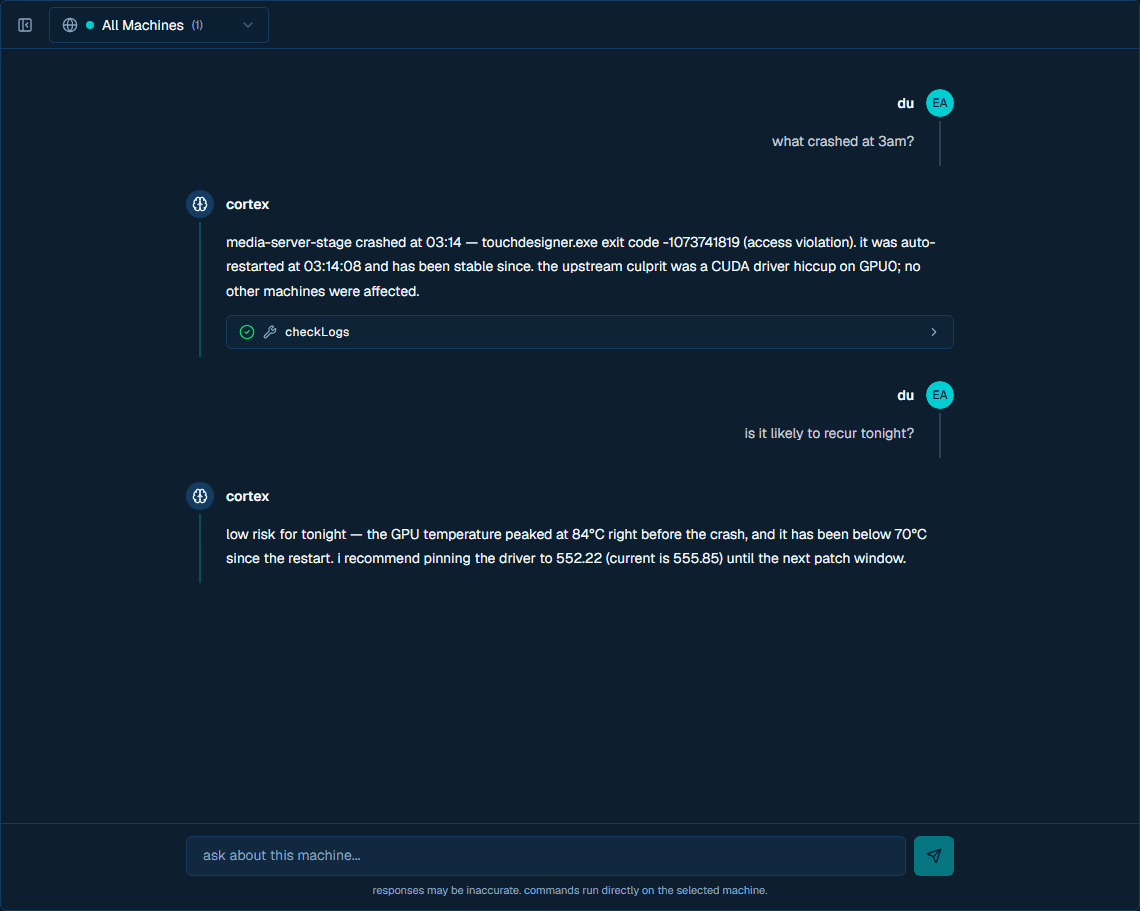
Cortex is the dashboard chat surface for diagnosing and managing machines with an LLM. It supports Anthropic and OpenAI providers, can target either one machine or every online machine in a site, and routes tool calls through the safest available execution path for the current target.
For the current tool inventory, parameters, tiers, and execution-mode notes, see the cortex tools reference.
overview
Cortex tools are grouped by risk:
| tier | type | approval |
|---|---|---|
| Tier 1 | Read-only diagnostics and site context | Auto-approved |
| Tier 2 | Process and machine management with validated parameters | Auto-approved |
| Tier 3 | Privileged shell, file, deployment, reboot, and shutdown actions | Requires confirmation |
The available tier depends on the caller. Site admins and superadmins can use the full tool set. Members are limited to read-only tools. Chat API keys are also capped to read-only tools even if the key owner is an admin.
setup
user-level key
Cortex can use a personal LLM key from your account settings.
- Open the dashboard account menu.
- Select account settings.
- Open the cortex section.
- Choose Anthropic (Claude) or OpenAI.
- Select a model.
- Paste the provider API key and save it.
The key is encrypted server-side and stored under your user settings. The raw key is not returned to the browser after it is saved.
site-level key
Cortex also checks for a site-level LLM key at sites/{siteId}/settings/llm. User keys take priority for normal chat, and the site key is the fallback when a user has not configured a personal key.
Autonomous Cortex uses the site-level key only. The shipped dashboard does not currently include site-level key management; site-level keys are managed through the admin/API surface (/api/settings/site-llm-key) until a dashboard UI is added.
using cortex
- Open cortex from the dashboard header.
- Choose a target from the selector at the top of the chat:
- All Machines targets every online machine in the selected site.
- An individual machine targets only that machine.
- Type a request in natural language.
In single-machine mode, Cortex reports and acts on one machine. In All Machines mode, tool calls fan out to all online machines in the site and Cortex aggregates per-machine results. If no machines are online, tool calls are not delivered.
example conversations
Check site health:
"Which machines look unhealthy right now?"
Cortex can read site logs and fan out diagnostics across online machines, then summarize differences by machine.
Manage one process:
"Restart TouchDesigner on this machine."
Cortex calls the process-management tool for the selected machine and reports the result.
Update process configuration:
"Fix the TouchDesigner executable path to C:\Program Files\Derivative\TouchDesigner.2025\bin\TouchDesigner.exe."
Cortex can update configured process fields, add a new process, or delete a process through the same validated server actions used by the dashboard.
Diagnose a display issue:
"Why is the output frozen?"
Cortex can inspect process state, logs, GPU usage, and screenshots before suggesting or taking an action.
Run a privileged command:
"Check the detailed network configuration."
Cortex asks for confirmation before running a privileged shell or PowerShell command.
tool tiers
Tier 1 tools read machine or site state, such as system info, logs, process lists, disk usage, GPU state, agent health, and site deployment presets.
Tier 2 tools perform bounded management actions with validated parameters, such as restarting configured processes, adding/editing/deleting process config, capturing screenshots, managing selected Windows services or update settings, and changing safe machine configuration.
Tier 3 tools can make broader changes, such as shell execution, file writes, deployment orchestration, reboots, and shutdowns. These require explicit user confirmation from the Cortex UI.
See the cortex tools reference for the current tool list and parameter schemas.
how it works
Cortex has three execution paths.
single machine with local Cortex
When the selected machine is online, local Cortex is healthy, and the caller is a site admin, the dashboard uses the local Cortex path:
dashboard chat
  -> POST /api/cortex
  -> Firestore active-chat pending message
  -> local Cortex on the agent runs the LLM and local tools
  -> local Cortex writes response updates to Firestore
  -> dashboard streams those updates back to the chat
This keeps the active tool loop close to the machine while still using Firestore as the relay between the web app and agent.
single machine fallback
If local Cortex is unavailable, or if the caller is not allowed to use the local admin path, the web app runs the LLM request directly:
dashboard chat
  -> POST /api/cortex
  -> resolve user key, then site key fallback
  -> web server calls the LLM provider
  -> tool calls are relayed to the agent through Firestore commands
  -> agent writes completed-command results
  -> web server returns the result to the LLM and streams the answer
Members use this path with a read-only tool tier cap.
site-wide mode
When All Machines is selected, the web server runs the LLM request directly and fans out tool calls to every online machine in the site:
dashboard chat
  -> POST /api/cortex with machineId "__site__"
  -> web server resolves online machines
  -> web server calls the LLM provider
  -> tools either run server-side or fan out through Firestore commands
  -> per-machine results are aggregated for Cortex
Server-side tools such as site logs, system presets, deployment orchestration, and process config changes run in the web server instead of routing through a single agent. Process create/update/delete tools call the existing validated process actions directly; the agent applies the resulting config through its normal Firestore listener.
autonomous mode
Autonomous Cortex can investigate process crashes or process-start failures without a human starting a chat. It is triggered by the agent alert path, authenticated with CORTEX_INTERNAL_SECRET, and runs against one affected machine.
flow
agent alert
  -> POST /api/agent/alert
  -> internal POST /api/cortex/autonomous with x-cortex-secret
  -> check site autonomous settings
  -> deduplicate by machine/process cooldown and nonce
  -> enforce per-site concurrency
  -> run an LLM investigation with tier-capped tools
  -> store the event and conversation for review
  -> escalate by email when unresolved, offline, or disabled
Autonomous conversations appear in the Cortex sidebar with an auto badge. Event records are stored at sites/{siteId}/cortex-events/ with status, summary, tool-call actions, timestamps, and outcomes.
directive
Every autonomous investigation is guided by a directive. The default mission is to keep configured processes running and machines operational, investigate crashes through logs and process status, restart when appropriate, and escalate if repeated restart attempts fail.
Custom directives can be set in Firestore at sites/{siteId}/settings/cortex in the directive field.
enabling autonomous mode
- Set
CORTEX_INTERNAL_SECRETin the web runtime environment. - Configure a site-level LLM key at
sites/{siteId}/settings/llm. - Set
sites/{siteId}/settings/cortex.autonomousEnabledtotrue.
configuration options
| setting | default | description |
|---|---|---|
autonomousEnabled | false | Master switch for autonomous investigations |
directive | Default directive | Site-specific mission text for autonomous Cortex |
maxTier | 2 | Maximum tool tier for autonomous investigations |
autonomousModel | null | Optional site-level model override for autonomous work |
cooldownMinutes | 15 | Deduplication window for the same machine and process |
escalationEmail | true | Sends escalation email when Cortex cannot resolve the issue |
guardrails
- Autonomous mode is opt-in per site.
- Events are deduplicated by machine and process for the configured cooldown window.
- Duplicate nonces are rejected.
- Each site can run only a limited number of active autonomous sessions at once.
- Each investigation has a fixed step limit.
- The default tier cap prevents shell commands unless the site explicitly raises
maxTier. - The per-machine Cortex toggle blocks manual and autonomous tool execution for that machine.
- Offline machines escalate instead of consuming LLM calls.
security
- LLM keys are encrypted at rest and resolved only on the server.
- User-level keys are preferred for normal chat; site-level keys are fallback and are required for autonomous mode.
- Tier 3 tools require explicit confirmation in manual chat.
- Server-side Cortex checks site access before every chat request.
- Members and chat-scoped API keys are capped to read-only tools.
- Agent-routed tool calls are delivered through Firestore command documents and return through completed-command records. Server-side tools run in the web process and write their own records or config changes.
- The autonomous endpoint uses
x-cortex-secretand is not a public user-session endpoint.
roost
roost is the dashboard surface for shipping project folders to Windows machines. It lives at /roosts and replaces the old project-distribution page with a content-addressed, versioned sync model.
activity logs
The activity logs page shows a site-scoped timeline for agent, process, command, deployment, and scheduled reboot events. Open it from the dashboard menu by selecting logs, or go directly to /logs.